Picture opening your app and discovering dozens of unread direct messages sitting in your inbox. According to recent data from Pew Research Center, over 50 percent of American adults actively use Instagram, while DataReportal reveals that the platform boasts over 3 billion active monthly users globally. Managing your direct messages efficiently builds trust with friends, followers, and prospective business clients.
You can build deeper connections when you master daily messaging habits on this visual platform. Communicating well opens doors to meaningful interactions and higher account engagement. This guide outlines practical techniques to handle your inbox with total confidence.
Why Responding to Instagram Direct Messages Matters
Direct messaging is at the heart of private communication throughout the application. When you answer incoming notes promptly, your audience feels valued and appreciated. Furthermore, the active engagement algorithm notices sustained private conversations and rewards your profile with higher reach. Creators who maintain high response rates often turn casual viewers into loyal community supporters. Similarly, small businesses capture fresh leads by answering client questions before interest fades. Neglecting your inbox creates friction and alienates people who genuinely want to connect with you.
Understanding the Structure of Your Instagram Inbox
Navigating your message hub properly prevents missed opportunities and delayed replies. Your inbox divides incoming communications into distinct visual categories for organized reading. Primary messages house conversations with friends, known contacts, and active connections. General messages hold secondary conversations that do not require immediate attention or urgent notifications. Request folders catch incoming notes from users who do not currently follow your profile—knowing where these distinct messages land ensures that important opportunities never slip through the cracks.
How to Access Direct Messages on Desktop and Mobile
Locating your inbox takes only a single tap from your main screen feed. On your mobile phone, tap the message bubble icon situated in the upper right corner of your home feed. Desktop users can click the dedicated message icon along the left side navigation menu. Additionally, web notifications alert you instantly whenever a contact sends a fresh note. Both versions allow you to scan through existing conversations smoothly. Checking this section daily helps you stay on top of incoming conversations.
Managing Primary, General, and Request Tabs
Organizing your inbox keeps incoming inquiries neat and stress free. You can move any ongoing chat between Primary and General tabs with a quick swipe gesture. Meanwhile, the Request folder protects you from unwanted spam or unsolicited media. When you accept a message request, Instagram transfers that conversation straight into your primary tab. Rejecting or deleting a request clears the message without notifying the sender. Consequently, reviewing your request tab weekly keeps your entire digital communication line organized.

Basic Steps on How to Respond to Messages on Instagram
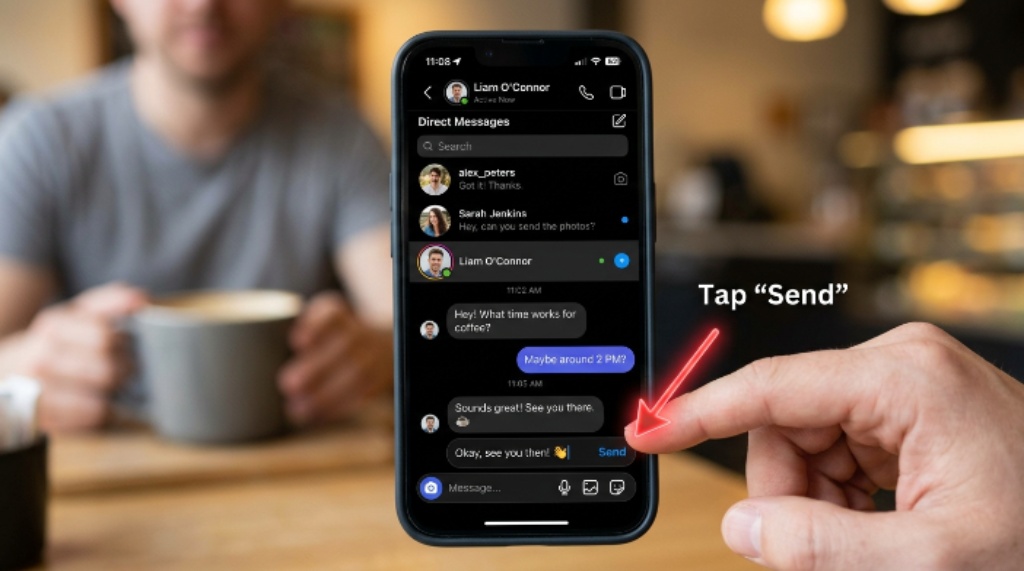
Replying to a direct note requires simple actions on mobile devices or computers. First, open your inbox and select the specific message thread you wish to continue. Next, tap the text box at the bottom of your screen to trigger your keyboard. Type out your thoughtful reply and press the send button to dispatch your text. Moreover, you can send voice notes, custom emojis, or photos to keep interactions lively. Consistently using these basic features helps you maintain natural conversations with your followers.
Swiping to Reply to Specific Messages
Replying directly to a precise comment in a busy chat prevents confusion. Locate the specific message inside your conversation thread that requires an answer. Swipe right on that exact text bubble until a small arrow icon appears alongside it. Alternatively, tap and hold the message on your screen to reveal the context menu and select the reply option. The platform quotes that original statement directly above your new reply. Consequently, your conversation partner clearly understands which topic you are addressing.
Expressing Thoughts with Quick Emoji Reactions
Sometimes a quick emoji reaction communicates your mood better than written words. Double tapping any incoming text bubble instantly places a default heart reaction on that item. Holding down on a message reveals an expanded panel of expressive emojis. You can pick thumbs up, laughter, or custom emojis to acknowledge a message rapidly. Furthermore, react icons save time when you want to acknowledge a note without starting a long conversation. This lightweight communication style keeps interactions fun and casual.
Advanced Instagram Messaging Features for Power Users
Modern updates offer powerful tools that elevate your daily messaging strategy. You can send vanishing media, record audio messages, or edit recently sent texts. Leveraging these advanced settings transforms how you connect with friends and business clients alike.
- Voice Notes: Record short audio clips when writing long explanations feels tedious.
- Vanishing Mode: Share temporary media that disappears automatically once viewed.
- Saved Replies: Store pre-written text shortcuts to answer repetitive questions instantly.
- Media Attachments: Share relevant posts, Reels, or photos straight from your camera roll.
How Businesses Can Manage High Message Volumes
Managing high volumes of incoming messages requires structured management systems for growing brands. A professional creator account grants access to specialized inbox management tools. Business owners can filter conversations by status, such as unread, flagged, or unanswered. Additionally, setting up automated greeting messages sets clear expectations for customer response times. Small teams can assign specific chat threads to designated staff members without sharing passwords. Implementing structured tools transforms a chaotic inbox into an efficient customer support center.
Utilizing Quick Replies for Common Questions
Answering identical questions repeatedly wastes valuable hours during your workday. Saved replies allow you to draft standardized answers for common inquiries about hours or availability. You simply type a short keyboard shortcut to insert a pre-written paragraph into your text field. Furthermore, editing these saved templates ensures your responses sound warm and personalized. This streamlined process saves time while maintaining high-quality customer support.
Setting Up Automated Away Messages
Maintaining round the clock availability remains impossible for individual business owners. Automated away messages inform customers that you received their note and will reply soon. You can schedule these automated messages to activate during non-working hours or weekends. Consequently, potential clients receive immediate acknowledgment even when you take personal time off. This professional touch builds trust and protects your brand reputation.

Best Practices for Polite and Effective Communication
Maintaining proper etiquette creates lasting professional relationships across social platforms. Always read the sender’s entire message carefully before drafting your final reply. Keep your tone light, clear, and helpful regardless of the inquiry topic. Furthermore, using proper punctuation and cheerful phrasing makes your account feel approachable. Prompt replies show respect for the reader’s time and foster genuine engagement.
- Acknowledge incoming questions within twenty four hours.
- Personalize each reply by using the recipient’s first name.
- Keep your answers concise and easy to read.
- Avoid using overly formal language in casual chat settings.
Common Instagram Messaging Mistakes to Avoid
Avoiding common communication pitfalls keeps your account safe and friendly. Leaving users on read for days without acknowledgement damages trust and lowers engagement. Similarly, sending aggressive sales pitches inside first messages alienates prospective clients. Using automated bots to send generic answers often frustrates genuine followers seeking real assistance. Furthermore, ignoring your request folder means missing out on high value networking opportunities. Staying thoughtful and responsive ensures long term communication success.
Conclusion
Mastering how to respond to messages on Instagram strengthens your digital connections and grows your online audience. By utilizing native reply features, emoji reactions, and inbox organization tools, you can manage conversations effortlessly. Businesses and creators alike benefit immensely from quick replies and automated away settings. Remember to maintain a warm, authentic tone in every single interaction. Start auditing your Instagram inbox today to build stronger relationships with your followers!
Frequently Asked Questions
How do I reply to a specific message on Instagram?
You can reply to a specific message by swiping right on that precise text bubble. Alternatively, press and hold the text until a menu pops up, then select the reply option. The platform quotes the original text directly above your new message.
Can I edit a message after sending it on Instagram?
Yes, you can edit a sent message within fifteen minutes of sending it. Press and hold your sent text bubble, then choose the edit option from the popup menu. Make your desired corrections and save the revised text.
How do I turn off read receipts for Instagram messages?
Navigate to your profile settings menu and select the privacy section. Tap on messages and story replies, then locate the read receipts toggle button. Turn off the feature to prevent senders from seeing when you view their notes.
What happens when I decline a message request?
Declining a message request deletes that incoming note from your inbox immediately. The original sender receives no notification that you declined or deleted their message. Future messages from that user will continue going to your request folder.
How do quick replies work for Instagram business accounts?
Quick replies allow creators to store pre-written answers for frequently asked questions. Users assign a short text shortcut to each saved answer in account settings. Typing that shortcut into the message box automatically populates the complete saved text.