
Losing an important direct message on social media can feel extremely frustrating. You might accidentally tap the wrong button or clean up your inbox too quickly. Suddenly, a critical business agreement, a fond memory, or a crucial link disappears from your screen. According to recent research from Pew Research Center, over forty-seven percent of adults in the United States use Instagram daily to communicate. Furthermore, data processing statistics reveal that Meta systems process more than one hundred billion messages every single day.
Luckily, losing a conversation does not always mean it is gone forever. This comprehensive guide walks you through proven methods on how to retrieve deleted Instagram messages safely.
Understanding How Instagram Handles Message Deletion
Before jumping into recovery techniques, you must understand how message removal works within the application. When you tap the delete button on a chat thread, Instagram removes that specific conversation view from your device interface. However, this action primarily affects your local display while the content may temporarily remain on cloud servers. Additionally, deleting a message on your end does not remove the conversation from the recipient’s inbox.
Furthermore, if a user uses the unsend feature, the message disappears from both account screens instantly. Instagram maintains strict privacy protocols to protect user data across all servers. Therefore, the platform does not feature a traditional trash folder for direct messages. Consequently, recovering lost text depends heavily on server caching, device logs, or external backups.
Official Method: Download Your Meta Account Information
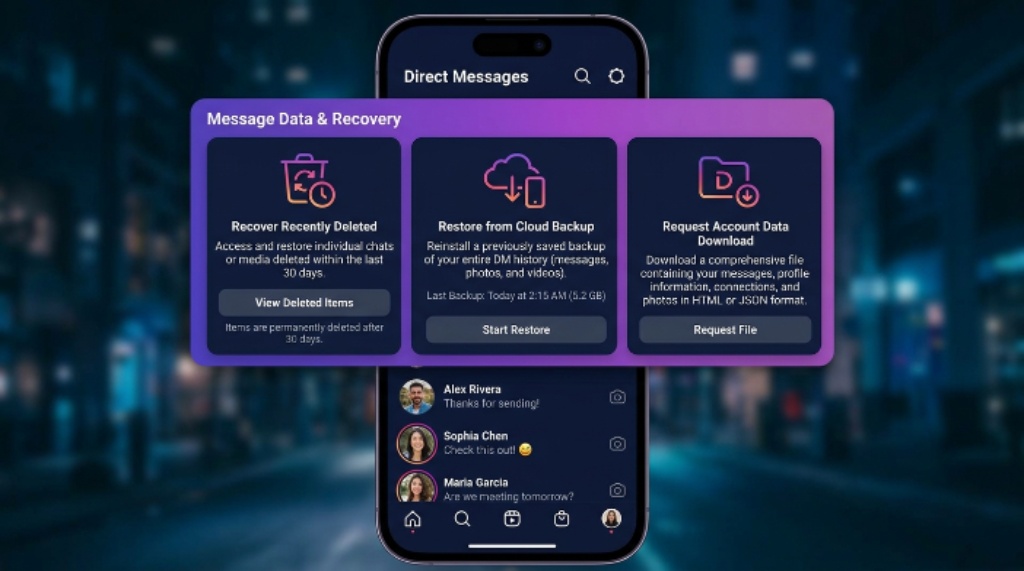
The most reliable way to recover missing conversations is through the official Meta data request tool. Meta keeps backup archives of account activity for a specific retention period. As a result, recently deleted chats might still exist within your downloadable file archive.
Requesting Your Data on Mobile
- Open the Instagram app on your smartphone and navigate directly to your profile page.
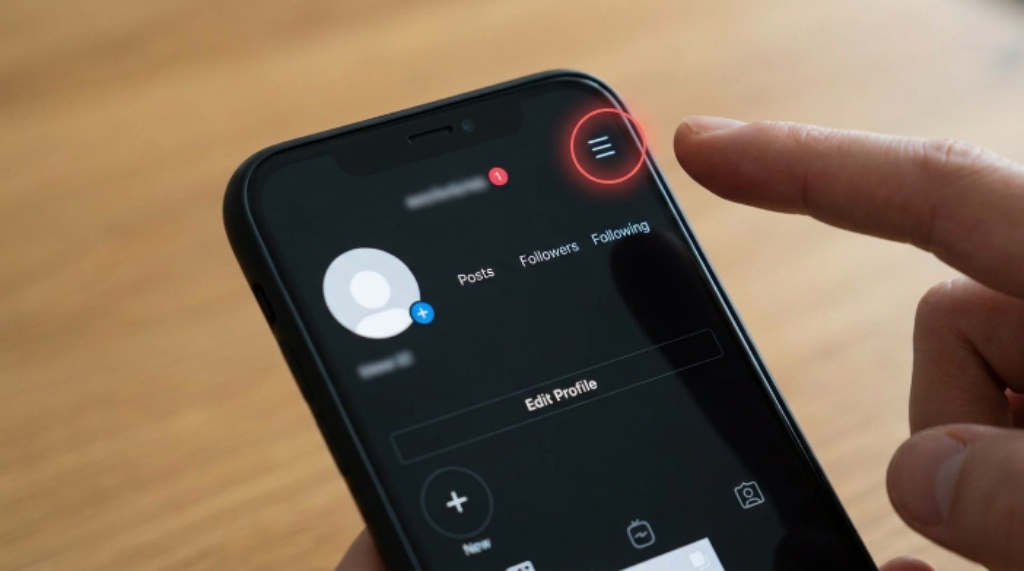
- Tap the menu icon featuring three lines in the top right corner of the screen.
- Select the Accounts Center option to manage your profile security and personal information.
- Choose Your Information and Permissions from the list of available menu settings.
- Tap Download Your Information and select Request a Download to initiate the process.
- Pick the specific Instagram account you want to inspect and select Specific Types of Information.
- Check the box next to Messages so your download file stays small and quick to process.
- Choose your preferred file format such as JSON or HTML and tap the Submit Request button.
Accessing Your Data File on Desktop
After submitting your request, Meta generates a compressed file containing your requested record archive. Generally, you will receive an email notification containing a direct download link within a few hours. Next, click the download button inside the email and save the folder directly to your computer’s desktop.
Extract the zip folder using standard file decompression software on your computer. Open the main folder, navigate to the messages directory, and locate the inbox folder. Inside this folder, you will find subfolders named after individual contacts. Finally, open the HTML or JSON files in your web browser to read through saved chat histories.
Smart Workarounds to Find Lost Direct Messages
If the official data download does not yield results, alternative workarounds might help you locate lost text content. These methods rely on external application connections or device-level logging features.
Checking Connected Facebook Inbox
Many users link their Instagram accounts directly to Facebook pages or personal Meta profiles. Consequently, messages often cross-sync between Meta Business Suite and Facebook Inbox.
- Open your Facebook account on a desktop computer browser.
- Navigate directly to your Meta Business Suite or Messenger inbox section.
- Click on the Instagram Direct tab situated on the left side menu bar.
- Search for the specific contact name to see if the message history remains intact.
Reviewing Android Notification History
Android smartphones feature built-in system logs that store incoming application notifications. Therefore, if you received the deleted message while notifications were active, your phone might have recorded the text.
First, open the Settings app on your Android smartphone device. Next, tap Notifications and select the Advanced Settings option. Afterwards, tap Notification History to view recent incoming message logs. Finally, scroll down to find Instagram and expand the dropdown list to read past message previews.
Contacting the Recipient Directly
Sometimes the easiest solution is also the most practical one. Deleting a chat thread on your account only clears the conversation from your personal screen view.
Therefore, the person on the other end of the chat likely still has the full message thread on their phone. You can simply reach out to your contact and explain the situation clearly. Kindly ask them to copy the text or take screenshots of the essential conversation points. This polite request saves time and completely avoids technical complications.
Restoring Phone Cloud Backups
Both iOS and Android devices frequently back up app data to cloud storage systems. If your device performed an automatic full system backup before you deleted the messages, restoring that snapshot might bring back app state records.
However, restoring a full cloud backup will overwrite current phone data created after that backup date. Always save recent photos, files, and important personal documents before attempting a device restoration process.

Red Flags: Avoiding DangerousThird-Partyy Scams
Searching online for message recovery methods often leads to suspicious websites and software downloads. Many malicious platforms promise instant recovery of deleted direct messages for a small fee.
- Avoid applications demanding your Instagram login credentials outside the official app login window.
- Ignore software tools that claim guaranteed recovery of permanently deleted server content.
- Never pay upfront fees to web services promising secret access to someone else’s account.
- Steer clear of downloadable file tools requiring device rooting or jailbreaking procedures.
Sharing your account credentials with untrusted applications puts your personal identity at severe risk. Additionally, unauthorized access violates Meta policies and can result in a permanent account ban. Stick strictly to official Meta channels and standard device notification logs.
Proactive Steps to Protect Your Direct Messages
Taking preventive measures ensures you never lose vital information in the future. Setting up simple habits protects your communication history from unexpected accidental deletion.
- Take quick screenshots of crucial text messages, addresses, and important phone numbers immediately.
- Save important images or voice notes directly to your phone’s internal camera roll.
- Forward key information to your email address or personal note-taking apps right away.
- Schedule monthly metadata downloads to maintain a personal offline message archive.
Frequently Asked Questions
1. Can Instagram support recover my deleted direct messages?
Instagram customer support teams cannot manually retrieve deleted direct messages for individual accounts. Automated system protocols handle data deletion across servers to protect user privacy laws. Therefore, reaching out to support representatives will not restore your erased chat logs.
2. Will requesting a data download bring back unsent messages?
When a user unsends a message, Meta systems completely remove the content from server databases. Consequently, unsent messages will not appear inside your requested account information download file.
3. How long does Meta take to send the information file?
Meta usually processes data download requests within a few hours. However, larger account files containing extensive media history can take up to forty-eight hours to process completely.
4. Does clearing cache delete my conversations permanently?
Clearing your application cache only removes temporary files stored on your local phone storage. This action frees up phone space and will not erase your direct message history from account servers.
5. Are third-party recovery apps safe to use for Instagram?
Most third-party tools claiming to recover deleted Instagram messages are unsafe and ineffective. They often compromise account security or install harmful malware onto your device.
Conclusion
Losing valuable Instagram conversations can feel overwhelming, but several practical paths exist to help you recover missing details. By requesting an official Meta data export, reviewing notification history, or reaching out directly to your contact, you can often retrieve lost text content efficiently. Always prioritize online safety by avoiding suspicious third-party recovery software that compromises your private data. Start taking control of your personal digital records today by requesting your official Meta data archive now.