
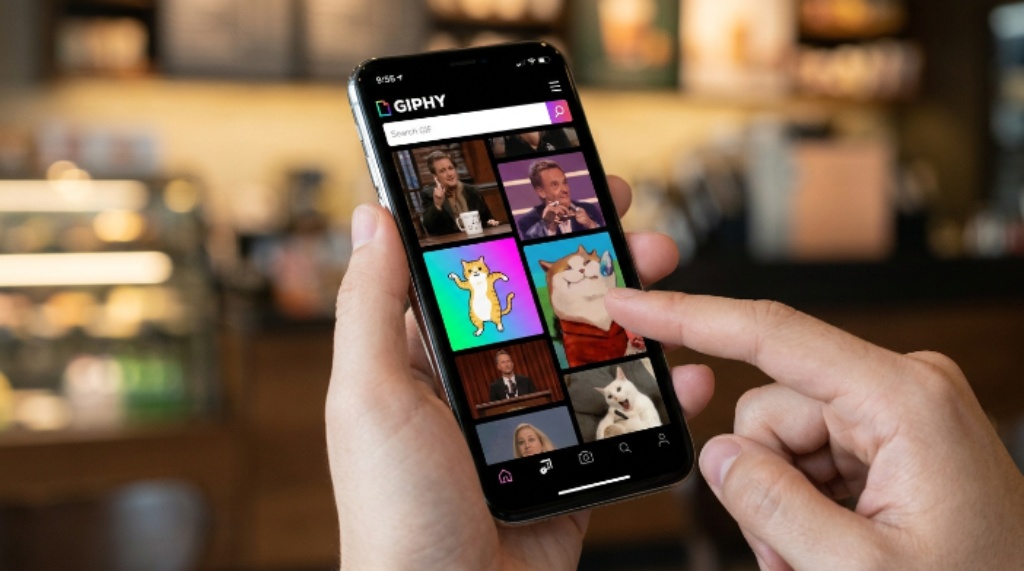
GIFs have become one of the most popular ways to express emotions, explain ideas, and capture attention on social media. They are quick, entertaining, and highly engaging. According to the Pew Research Center, more than 70% of adults in the United States use social media, making visual content more important than ever.
Additionally, research from the National Center for Biotechnology Information shows that people process visual information much faster than plain text, which explains why animated content often receives stronger engagement.
If you have ever wondered how to post GIFs on Instagram, you are not alone. Many users discover that Instagram does not allow GIF uploads the same way it supports photos and videos. Fortunately, there are several easy ways to share animated content on the platform. This guide explains every method in detail, along with practical tips, common mistakes, and best practices that help your content stand out.
Why Instagram Does Not Support GIF Files Directly
Many people try uploading a GIF file only to receive an error or notice that the animation disappears. This happens because Instagram primarily supports image and video formats instead of the traditional GIF format.
Instead of displaying raw GIF files, Instagram converts or relies on video files for animation. As a result, users must use a simple workaround before sharing animated content.
Fortunately, this limitation is easy to overcome. Once you understand how Instagram handles animations, posting GIFs becomes simple.
What Is the Best Way to Post a GIF on Instagram?
The easiest solution is converting the GIF into a short video. Instagram treats videos as native content, allowing the animation to play smoothly without losing quality.
Several trusted tools automatically convert GIFs into MP4 videos. After conversion, you can upload the file just like any other video.
This method works for:
- Instagram Feed
- Instagram Stories
- Instagram Reels
- Instagram Direct Messages
Because of its reliability, this remains the preferred option for most creators.
How to Post a GIF on Instagram as a Feed Post
Posting a GIF on your feed requires only a few simple steps.
Step 1
Choose the GIF you want to share.
You can create your own animation or download one from a trusted GIF library.
Step 2
Convert the GIF into an MP4 video.
Many free online converters complete this process within seconds while preserving image quality.
Step 3
Open Instagram.
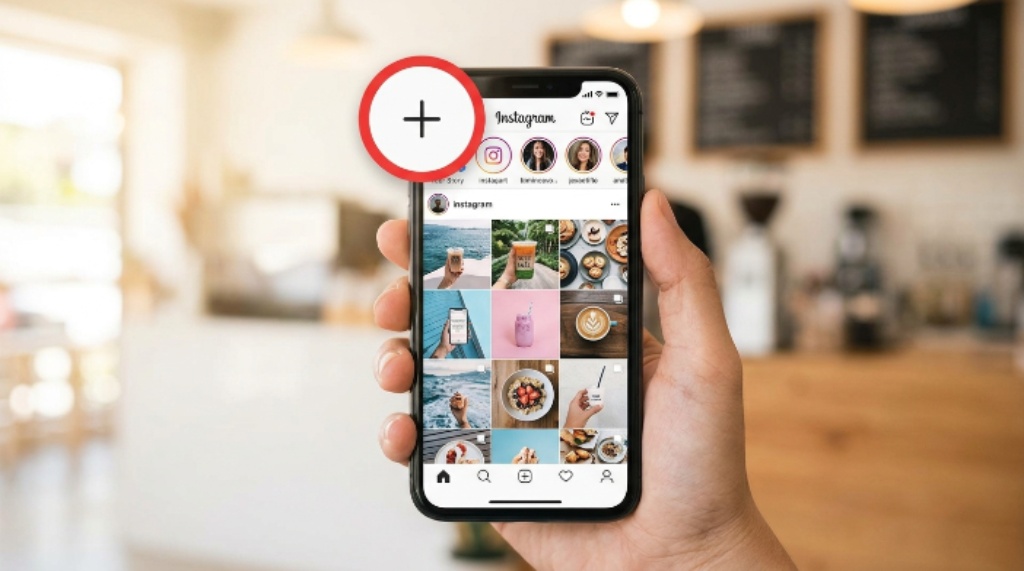
Tap the plus icon to create a new post.
Step 4
Select the converted video.
Instagram recognizes it as a regular video instead of a GIF.
Step 5
Edit your content.
You can:
- Crop the video
- Add filters
- Adjust brightness
- Write a caption
- Include hashtags
- Tag friends
- Add a location
Step 6
Publish the post.
Once uploaded, the animation will play automatically inside your followers’ feeds.
How to Share GIFs in Instagram Stories
Stories are one of the easiest places to use animated content.
Instagram has built-in GIF stickers powered by GIPHY. Therefore, you often do not need to upload your own GIF.
Follow these steps:
- Open Instagram Stories.
- Capture or upload a photo or video.
- Tap the Sticker icon.
- Select GIF.
- Search for an animation.
- Place it anywhere on your Story.
- Resize it if necessary.
- Publish your Story.
This approach works well because animated stickers naturally attract attention without distracting viewers.
How to Upload Your Own GIF to Stories
Sometimes you want to share your own animation instead of using the built-in sticker library.
In that case:
- Convert the GIF into MP4.
- Open Instagram Stories.
- Upload the converted file.
- Add text, stickers, music, or polls.
- Share your Story.
This method gives you much more creative control while keeping excellent animation quality.
How to Post GIFs on Instagram in Reels
Reels receive significant visibility through Instagram’s recommendation system. Therefore, using animated content inside Reels can increase audience engagement.
Begin by converting your GIF into MP4.
Then follow these steps:
- Open Reels.
- Select the converted video.
- Trim the beginning or ending if needed.
- Add trending audio.
- Insert captions.
- Include effects if appropriate.
- Publish the Reel.
Because Reels favor engaging visuals, looping animations often perform surprisingly well.
How to Send GIFs in Instagram Direct Messages
Instagram makes messaging much easier because you can send GIFs without converting them.
Simply follow these instructions:
- Open Direct Messages.
- Select the conversation.
- Tap the Sticker icon.
- Choose GIF.
- Search for the animation.
- Tap the GIF.
- It sends instantly.
This feature is powered by GIPHY, allowing access to millions of animations.
How to Create Your Own GIF
Creating original GIFs helps your content stand out.
Several methods work well.
Record a Short Video
Capture a few seconds of movement.
Afterward, convert it into a looping animation.
Use Animation Software
Many editing applications allow users to build custom animated graphics.
Create Branded Content
Businesses often produce branded GIFs featuring:
- Company logos
- Products
- Mascots
- Promotional messages
Original GIFs improve brand recognition while making social content more memorable.
Best Practices for Posting GIFs on Instagram
Following proven strategies improves visibility and audience engagement.
Keep Animations Short
Short loops maintain viewer attention.
Animations lasting only a few seconds usually perform better.
Focus on High Quality
Blurry GIFs reduce professionalism.
Always use clear animations with sharp resolution.
Match the Content
Every animation should support your message.
Random GIFs often confuse viewers rather than entertain them.
Add Captions
Captions provide context.
They also encourage comments and discussions.
Include Relevant Hashtags
Appropriate hashtags improve discoverability.
Avoid stuffing unrelated tags.
Optimize for Mobile
Most Instagram users browse on smartphones.
Always preview your content before publishing.
Common Mistakes to Avoid
Many users accidentally reduce engagement through simple mistakes.
Avoid these common issues.
- Uploading GIF files directly instead of converting them
- Using low-quality animations
- Posting overly long loops
- Ignoring captions
- Forgetting accessibility
- Adding excessive stickers
- Using unrelated hashtags
- Sharing copyrighted content without permission
Correcting these mistakes immediately improves user experience.

Benefits of Using GIFs on Instagram
Animated content offers several important advantages.
Better Engagement
Movement naturally attracts attention.
Consequently, users often spend more time viewing animated posts.
Stronger Emotional Connection
GIFs communicate emotions quickly.
Viewers understand humor, excitement, surprise, or celebration almost instantly.
More Memorable Content
People remember moving visuals more easily than static images.
As a result, your posts become easier to recall.
Higher Story Interaction
Interactive Stories with GIF stickers frequently encourage viewers to continue watching until the end.
Real World Example
Imagine a bakery introducing fresh cinnamon rolls every Saturday morning.
Instead of posting a single photo, the owner shares a looping animation showing warm icing slowly melting over the rolls.
Customers immediately notice the movement while scrolling.
Consequently, more people stop, watch the full animation, and visit the bakery that weekend. This simple visual upgrade makes the promotion more engaging without requiring expensive video production.
Accessibility Tips
Accessibility helps every audience enjoy your content.
Keep these recommendations in mind.
- Use readable text.
- Maintain good color contrast.
- Avoid flashing animations.
- Include descriptive captions.
- Add alternative descriptions whenever possible.
These improvements benefit both users and search visibility.
Final Thoughts
Learning how to post GIFs on Instagram is much easier once you understand that Instagram prefers video files over traditional GIF formats. Whether you want to share animations in your feed, Stories, Reels, or direct messages, each method requires only a few simple steps. Furthermore, using high-quality visuals, engaging captions, and relevant hashtags can significantly improve your results. Start experimenting with animated content today, test different formats, and discover what resonates most with your audience.
FAQs
How do I upload a GIF directly to Instagram?
Instagram does not support direct GIF uploads for feed posts. You should convert the GIF into an MP4 video before uploading it.
Can I use GIF stickers in Instagram Stories?
Yes. Instagram provides built-in GIF stickers through GIPHY. Simply open the sticker menu, search for a GIF, and place it anywhere on your Story.
Why does my GIF become a still image?
This usually happens because Instagram treats the uploaded file as an image instead of an animation. Converting it into an MP4 video solves the problem.
Can I send GIFs in Instagram messages?
Yes. Instagram Direct Messages include a built-in GIF search that lets you send animated images instantly without converting them.
Do GIFs improve Instagram engagement?
When used appropriately, animated visuals often capture attention faster than static images. Combined with quality captions and relevant content, they can increase engagement and viewer retention.


