

Have you ever selected a group of photos for Instagram only to discover that you cannot add every image you want? Many users run into this issue when sharing vacation memories, wedding albums, business portfolios, or event highlights. Fortunately, Instagram has expanded its carousel feature, making it easier than ever to share larger collections of photos in a single post.
According to Meta, Instagram users collectively share millions of photos and videos every day through Stories, Feed posts, Reels, and direct messages. Additionally, research from the Pew Research Center shows that Instagram remains one of the most popular social media platforms among American adults, making it an important channel for personal sharing and business marketing alike. As the platform evolves, knowing how to use its latest features helps you create better content while improving engagement.
In this guide, you will learn how to post more than 10 photos on Instagram, understand the current carousel limits, troubleshoot common problems, and discover practical tips that make your posts more engaging.
What Does Posting More Than 10 Photos on Instagram Mean?
Instagram originally limited carousel posts to ten photos or videos. That restriction frustrated creators, photographers, travelers, educators, and businesses that wanted to tell longer visual stories.
Fortunately, Instagram has gradually increased this limit for eligible accounts. Many users can now upload up to 20 photos or videos in a single carousel post. However, availability may vary based on your app version, account type, and regional rollout.
Instead of splitting your content into multiple posts, you can now present a complete story in one organized carousel. As a result, your followers enjoy a smoother viewing experience while your profile stays cleaner.
Can You Post More Than 10 Photos on Instagram?
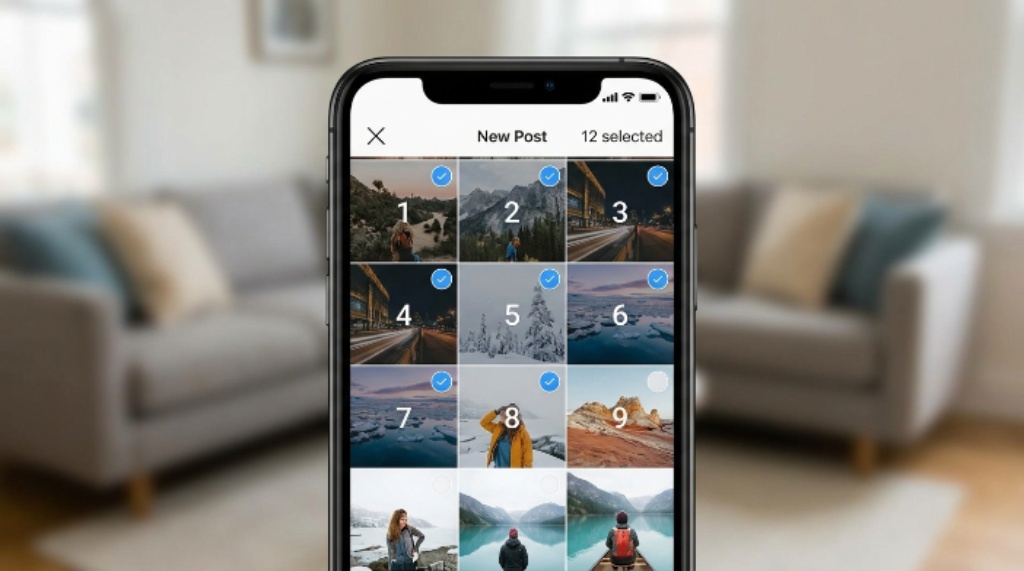
Yes. Many Instagram accounts now support uploading up to 20 photos or videos in one carousel post.
However, if your account still only allows ten items, it does not necessarily mean something is wrong. Instagram often releases new features gradually. Consequently, some users receive updates earlier than others.
Your available limit depends on several factors.
- Your Instagram app version
- Your device operating system
- Your region
- Meta’s feature rollout schedule
- Temporary testing groups
Therefore, always make sure your application is fully updated before assuming the feature is unavailable.
How to Post More Than 10 Photos on Instagram
Step 1: Update Instagram
Start by installing the latest version of Instagram.
Older app versions may not support the expanded carousel feature. Updating your application ensures you receive the newest improvements, bug fixes, and feature releases.
After updating, restart the app before creating a new post.
Step 2: Tap the Create Button
Open Instagram and tap the plus icon.
Choose Post instead of Story or Reel. This option allows you to create a carousel for your profile feed.
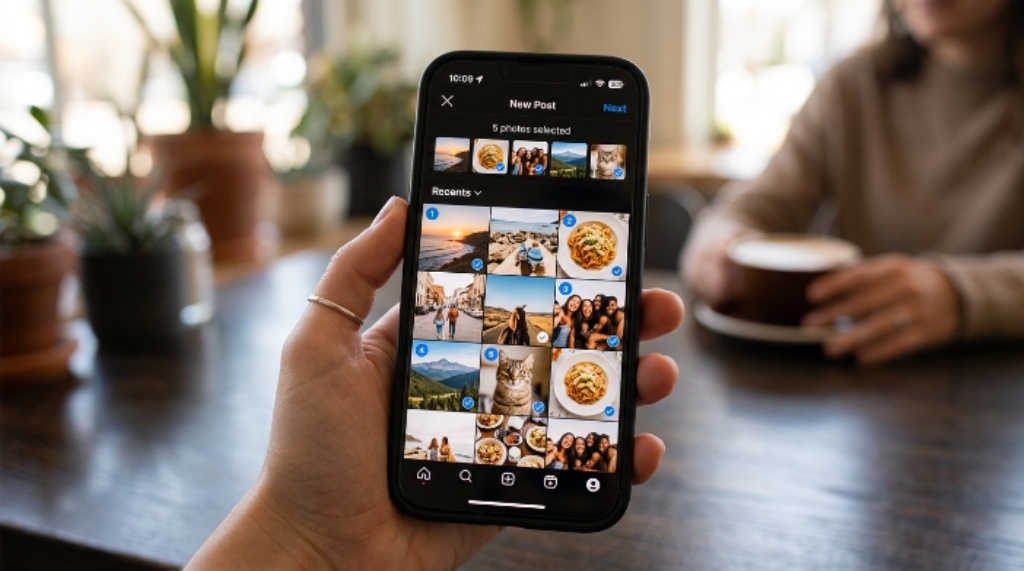
Next, tap the multiple photo selection icon.
Step 3: Select Your Photos
Choose the images and videos you want to upload.
If your account supports the latest feature, you should be able to select more than ten items. Continue selecting until you reach the maximum allowed number.
Arrange the photos in the order that tells your story best because viewers will see them in that sequence.
Step 4: Edit Each Photo
Instagram allows you to edit every image individually.
You can adjust:
- Brightness
- Contrast
- Saturation
- Warmth
- Highlights
- Shadows
- Filters
Keeping a consistent editing style creates a professional appearance throughout the carousel.
Step 5: Write an Engaging Caption
A strong caption encourages users to spend more time with your post.
Consider including:
- A short story
- Helpful tips
- Questions for readers
- Calls to action
- Relevant hashtags
Captions that invite conversation often generate more comments and saves.
Step 6: Share Your Carousel
After reviewing everything, tap Share.
Instagram will upload your carousel. Once published, followers can swipe through every image in your collection.
What If You Still Cannot Add More Than 10 Photos?
Many users still encounter the older limit. Fortunately, several solutions often resolve the issue.
Update Your App
This remains the most common fix.
Visit your device’s app store and install the latest Instagram version.
Restart Instagram
Close the application completely.
Reopen it after several seconds. Sometimes new features activate after a fresh launch.
Restart Your Phone
Refreshing your device clears temporary software issues that may interfere with new Instagram features.
Clear App Cache
Android users can clear the Instagram cache from device settings.
Removing temporary files often improves app performance without deleting your account.
Wait for Feature Rollout
Instagram frequently releases features in stages.
Even after updating, your account may receive expanded carousel support several days or weeks later.
Patience is sometimes the only solution.
Why Instagram Increased the Carousel Limit
Instagram constantly adapts to user behavior.
People increasingly share complete experiences instead of isolated moments. Longer carousel posts help users tell richer stories without flooding followers with multiple uploads.
Businesses also benefit.
Instead of publishing separate posts for every product, they can showcase multiple products within one carousel. Likewise, educators can explain complex topics step by step while photographers can display entire collections in one post.
As a result, engagement often improves because viewers spend more time swiping through the content.
Benefits of Posting More Than 10 Photos
Using larger carousel posts provides several advantages.
Better Storytelling
One image rarely captures an entire experience.
Whether you attended a family reunion, visited a national park, or launched a new product, multiple photos create a complete narrative that feels natural.
Higher Engagement
Many social media experts report that carousel posts encourage users to spend more time interacting with content.
More swipes can signal stronger engagement, which may help increase visibility.
Cleaner Instagram Profile
Instead of publishing three separate posts from one event, you can organize everything into one carousel.
This keeps your profile visually balanced and easier to browse.
Improved Educational Content
Creators who teach photography, fitness, cooking, finance, or marketing often use each slide as an individual lesson.
Readers can follow instructions step by step without leaving the post.
Better Product Showcases
Businesses can display:
- Different product angles
- Color options
- Before and after examples
- Customer testimonials
- Product features
Everything remains organized inside one post.
Creative Ideas for Large Instagram Carousels
If you now have access to larger carousel posts, make the most of them.
Popular ideas include:
- Vacation photo journals
- Wedding albums
- Graduation celebrations
- Recipe tutorials
- Home renovation progress
- Interior design inspiration
- Fitness transformations
- Educational guides
- Business portfolios
- Event highlights
- Product launches
- Travel itineraries
- Fashion collections
- Photography galleries
Each concept works especially well when every image naturally leads into the next.
Best Practices for Instagram Carousel Posts
Creating a larger carousel is only the beginning. Quality matters just as much as quantity.
Start With Your Strongest Image
Your first photo determines whether someone stops scrolling.
Choose an eye-catching cover image that immediately captures attention.
Tell One Story
Avoid mixing unrelated topics.
Instead, keep every image focused on the same theme so readers stay interested until the final slide.
Maintain Consistent Editing
Use similar colors, lighting, and filters throughout the carousel.
Consistency creates a polished appearance that strengthens your personal or business brand.
Add Value
Every slide should provide something useful.
Ask yourself whether each image educates, entertains, inspires, or informs your audience.
If not, consider removing it.
Encourage Swiping
Your caption can gently encourage viewers to continue swiping.
Simple prompts often increase the number of slides people view.
Common Mistakes to Avoid
Even experienced Instagram users make mistakes that reduce engagement.
Try to avoid these common problems.
- Uploading too many similar photos
- Using blurry images
- Posting without a clear story
- Ignoring photo order
- Overediting pictures
- Writing weak captions
- Adding irrelevant hashtags
- Forgetting accessibility by skipping image descriptions
Improving these areas often produces better results than simply uploading more photos.
Does Posting More Photos Improve Instagram Performance?
Not automatically.
Success depends on the quality of your content rather than the number of images.
A carousel with twenty valuable photos will usually outperform one filled with repetitive images. Therefore, focus on relevance, storytelling, and audience interest instead of maximizing the photo count.
Creators who consistently publish helpful, entertaining, or inspiring content typically build stronger communities over time.
Tips for Businesses and Content Creators
Businesses can use larger carousel posts strategically.
For example, a clothing brand can display an entire seasonal collection in one upload. Meanwhile, a real estate agent can showcase multiple rooms from one property. Similarly, a restaurant can highlight appetizers, main courses, desserts, and customer experiences within the same carousel.
Content creators can also organize educational posts into clear visual lessons. A fitness coach might explain an exercise routine one step at a time, while a travel blogger can document an entire trip from departure to return. This organized approach keeps followers engaged while delivering meaningful value.
Future of Instagram Carousel Posts
Instagram regularly updates its platform based on user feedback and evolving content trends.
As visual storytelling continues to grow, carousel posts will likely become even more interactive. Future improvements may include enhanced editing tools, smarter organization options, and additional creative features that help users share longer stories without overwhelming their audience.
Staying updated with the latest Instagram features ensures that you continue using the platform effectively as new capabilities become available.
Conclusion
Learning how to post more than 10 photos on Instagram is much easier than many users expect. If your account supports the latest update, you can upload up to 20 photos or videos in a single carousel post. If the feature has not appeared yet, updating your application, restarting your device, and waiting for the rollout are usually the best solutions.
Remember that successful Instagram posts rely on quality rather than quantity. Choose meaningful images, organize them thoughtfully, maintain consistent editing, and write captions that encourage interaction. Start creating richer carousel posts today and give your audience a complete visual story worth exploring.
Frequently Asked Questions
Can everyone post more than 10 photos on Instagram?
Not yet. Instagram is rolling out the expanded carousel feature gradually. Many users can upload up to 20 photos, while others still have the older ten photo limit until the update reaches their accounts.
Why does my Instagram still only allow 10 photos?
Your app may need updating, or the feature may not be available for your account yet. Instagram often releases new features in stages across different regions and user groups.
Can I mix photos and videos in one carousel?
Yes. Instagram allows users to combine both photos and videos in the same carousel post as long as the total number stays within the current limit for their account.
Will posting more photos increase engagement?
Larger carousel posts can improve engagement when they tell a meaningful story or provide useful information. However, content quality always matters more than the total number of images.
Can I add more photos to a carousel after posting?
No. Instagram currently does not allow users to add new photos to an existing carousel after it has been published. You would need to create a new post if you want to include additional images.