Every single day, millions of social media users discover captivating photography, inspirational recipes, and visual artwork across their feeds. Recent data from the Pew Research Center reveals that 50 percent of adults in the United States actively use Instagram, while 76 percent of young adults ages 18 to 29 browse the platform regularly. Consequently, learning how to save an image from Instagram has become an essential digital skill for everyday users. People frequently want to keep these memories, artistic shots, or project ideas stored safely on their mobile phones or personal computers.
This comprehensive guide details every proven, safe, and effective method for saving your favorite visual content. You will discover practical strategies that work seamlessly across smartphones, tablets, and desktop computers today.
Understanding Instagram Privacy and Photo Saving Basics
Instagram deliberately protects creator intellectual property by omitting a direct download button for photos posted by other user accounts. Therefore, the platform encourages users to store content internally or respect original copyright boundaries. Understanding these native platform boundaries helps you choose the right approach for your personal media collection.
Furthermore, you must always respect copyright laws whenever you collect media from public feeds. While personal inspiration folders remain perfectly fine, republishing someone else’s visual work without permission violates copyright rules. Additionally, creator accounts deserve proper credit if you plan to share their artistic pictures elsewhere online.
Method 1: How to Save an Image from Instagram Using In App Bookmarks
The easiest, safest native feature for organizing content involves the built in bookmarking system. Consequently, you can curate personal galleries without filling up your mobile device storage space.
Saving Photos to Private Collections
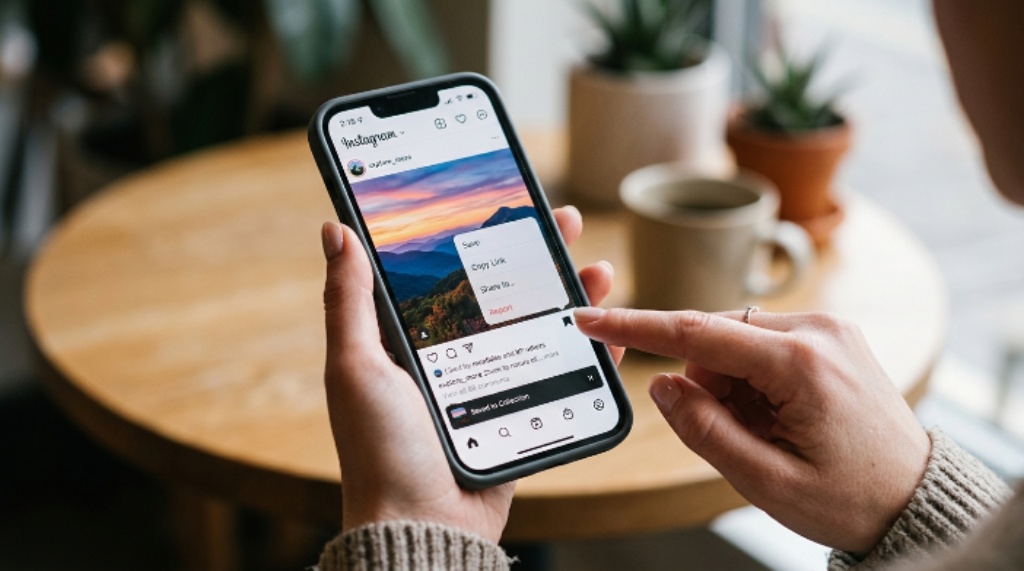
First, locate the small ribbon icon situated underneath the lower right corner of any feed post. Next, tap this bookmark button once to immediately add the photo to your default saved folder. Moreover, this action remains completely private, so the account creator receives zero notifications about your action. As a result, you can bookmark as many pictures as you desire without disturbing anyone. Finally, accessing these items takes only a few seconds through your main user profile menu.
Organizing Saved Images into Custom Folders
Additionally, long pressing the ribbon icon allows you to build specific themed folders inside your account. For instance, you can create separate collections for travel inspiration, cooking recipes, fashion ideas, or home décor. Furthermore, organizing your saved posts into named categories makes finding specific visual content quick and effortless later. Similarly, you can collaborate on collections by inviting your close friends to view or add shared posts. In short, internal bookmarking provides the ultimate seamless organization tool for daily mobile app browsing.
Method 2: How to Save an Image from Instagram via Screenshots
When you need an offline copy stored directly inside your phone photo gallery, capturing a quick screen image remains the fastest solution. Fortunately, modern smartphones capture high resolution screen pictures with ease.
Taking High Quality Screenshots on iPhone
Apple device users can capture screen images in just one quick motion. To begin, press the side button and the volume up button simultaneously on modern iPhone models. Next, release both buttons quickly to capture everything displayed on your smartphone display. Afterward, a small thumbnail preview will appear briefly in the bottom left corner of your screen. Ultimately, your smartphone automatically transfers the newly captured image directly into your main Photos app.
Capturing Clear Screenshots on Android Devices
Android smartphone owners follow a nearly identical hardware shortcut for storing screen photos. Specifically, press the power button and the volume down button at the exact same moment. Alternatively, many modern Android phones allow swipe gestures across the screen to take rapid screen grabs. As a result, the device captures the exact photo displayed on your app screen instantly. Indeed, this universal shortcut works across virtually all major smartphone brands including Samsung, Pixel, and Motorola.
Editing and Cropping Your Screenshots Efficiently
After taking your screen grab, you should trim away unnecessary app controls and interface buttons. First, open the image inside your native device photo editor app. Second, drag the corner cropping handles inward to frame the central picture perfectly. Next, save the cropped file to overwrite the original unedited screen image. Consequently, your final saved picture looks clean, professional, and free of distracting app icons.
Method 3: How to Save an Image from Instagram on Desktop Browsers
Desktop computers offer advanced options for extracting full resolution media files straight from source code. Therefore, web browser power users often prefer desktop solutions over mobile screen captures.
Using Page Source Code to Extract Original Images
Computer users can access high resolution media files through standard web browser source inspectors. First, open your preferred desktop web browser and navigate directly to the specific Instagram post link. Second, right click anywhere near the target picture and choose the inspect element option. Next, navigate carefully through the document object model tree to locate the original file link ending in a standard picture format. Finally, copy that source link, open it in a new browser tab, and right click to save the original high quality file.
Downloading Images via Web Browser Developer Tools
Web browser developer tools simplify the file extraction process even further for desktop users. For example, Chrome and Firefox offer dedicated media tabs inside their developer console panels. To begin, launch developer tools by pressing key combinations or selecting inspect element options. Next, switch over to the network or application tab and filter all incoming assets by media type. Consequently, refreshing the page displays all original image files, allowing you to save the highest resolution version effortlessly.
Method 4: How to Save Your Own Posted Instagram Photos Automatically
Many content creators forget that they can automatically archive their own original edited uploads straight to their phone camera roll. Fortunately, enabling native storage settings solves this problem permanently.
Enabling Automatic Saving to Mobile Camera Roll
First, open your user profile tab inside the mobile app and tap the main menu lines in the top right corner. Next, scroll down through your account settings menu until you locate the archiving and downloading options. After that, toggle on the switches labeled save original photos and save story to camera roll. As a result, every single picture you capture, edit, and publish will save automatically to your smartphone gallery. Consequently, you never have to worry about losing your custom edited media files again.
Saving Previously Published Photos to Your Device
If you need to retrieve a photo published prior to turning on automatic saving, alternative native solutions exist. For instance, you can open your active story, tap the three dots menu, and select the download photo option directly. However, for feed posts published long ago, taking a screen grab remains the simplest direct approach. Alternatively, downloading your complete personal account data archive from security settings delivers all historical media directly to your email inbox. Thus, retrieving your historical content library stays completely within your personal control.
Method 5: Using Third Party Tools and Online Downloaders Safely
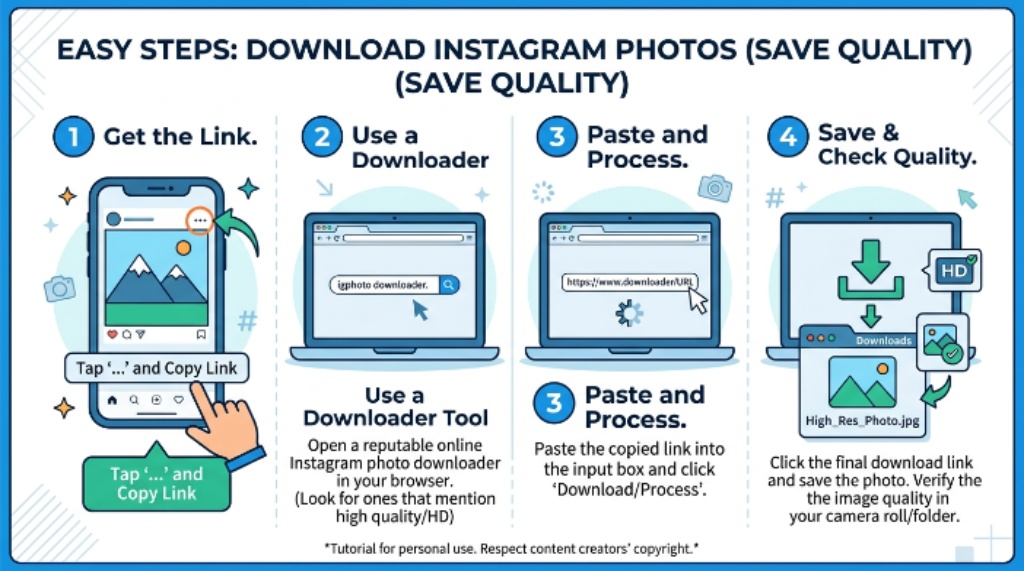
Numerous web based downloader tools claim to extract media links instantly without requiring software installations. However, navigating these external options requires caution and safety awareness.
Choosing Safe Web Based Downloader Tools
Online downloader websites work by processing public post web links directly through automated script tools. First, copy the exact post link from the share menu inside your mobile app or desktop browser. Second, paste that copied link into the input field of a reputable media downloader website. Next, click the process or convert button to generate direct download links for the underlying media file. Finally, download the high resolution file directly to your local computer or phone downloads folder.
Protecting Account Security and Copyright Rules
However, safety must remain your absolute top priority whenever you explore third party download sites. Specifically, never enter your account login credentials or password into any external downloader portal. Furthermore, avoid installing suspicious browser extensions or downloading executable files from unfamiliar web portals. Additionally, always remember that downloading private account content without explicit user permission breaches digital ethics standards. Therefore, stick exclusively to downloading public content for legitimate, personal, non commercial viewing purposes.
Conclusion
Mastering how to save an image from Instagram gives you total control over how you collect and preserve digital inspiration. Whether you rely on simple in app bookmarks, quick smartphone screen captures, or advanced desktop browser tools, reliable options exist for every situation. Always remember to honor content creator rights by keeping your saved media strictly personal unless given explicit permission to share. Now that you understand these practical methods, open your app today and start organizing your favorite visual memories safely and efficiently!
Frequently Asked Questions (FAQs)
Can you save photos directly to your camera roll without taking a screenshot?
You can save your own uploaded content directly to your phone camera roll by turning on automatic archiving settings. However, for pictures uploaded by other accounts, native app rules prevent direct gallery downloads without screen captures or external web tools.
Does Instagram notify creators when you screenshot their posts?
No, the platform does not send notifications when you take a screen picture of standard feed posts or traditional profile photos. However, privacy rules differ for direct messaging, where disappearing media alerts send notifications if someone captures a screen image.
How can you save Instagram images on a computer in high resolution?
Desktop web browsers allow you to inspect page elements or network developer panels to extract original high resolution image links. Once located inside the inspect tool, simply open the target source link in a fresh tab and save it directly to your hard drive.
Is it legal to download and reuse images from Instagram?
Saving images for personal inspiration or offline viewing remains generally permissible under standard fair use concepts. However, republishing, selling, or using someone else’s copyrighted visual work for commercial gain without written consent violates copyright laws.
Why can I not find the save option on certain Instagram posts?
The in app bookmark ribbon icon appears on all standard public and private feed posts across the platform. If the save icon disappears, check your internet connection, update your mobile app through the app store, or restart your mobile device.