
Snapchat remains one of the most popular social media apps worldwide, with more than 800 million monthly active users. Many users spend several hours each week creating videos, sending snaps, and sharing stories. However, holding the record button for long clips can feel uncomfortable and frustrating during daily use. Fortunately, Snapchat offers easier ways to record videos hands-free on both Android and iPhone devices. Moreover, several built-in and device-based tricks can help you create smooth videos without constantly touching the screen. This guide explains every practical method in simple steps. You will also learn useful recording tips, common mistakes to avoid, and ways to improve your Snapchat videos.
Why Users Want Hands-Free Recording on Snapchat
Many Snapchat creators prefer hands-free recording because it feels more comfortable during long sessions. It also allows users to move naturally while filming dance clips, tutorials, or vlogs. Moreover, hands-free recording creates more stable and professional-looking videos for stories and reels. People who travel or record outdoors especially benefit from this feature.
Holding the button continuously can limit camera movement and reduce creativity during recording. Additionally, it often causes shaky footage and awkward camera angles in videos. Users also struggle to hold the button while showing products, cooking, or demonstrating something on screen. Therefore, hands-free recording improves both comfort and video quality.
How Snapchat Recording Works
Snapchat normally records videos when users press and hold the capture button. Once the button gets released, the recording stops immediately within the app. This default method works well for short snaps and quick casual recordings. However, longer content becomes harder to manage using this approach.
The app also includes a lock recording feature that enables hands-free video capture. After starting the recording, users can slide their finger toward the lock icon on the screen. Snapchat then continues recording automatically without requiring constant finger pressure. As a result, users can move freely while filming videos.
How To Record Without Holding the Button on Snapchat Using Built-In Lock Feature
Use the Snapchat Hands-Free Recording Option
Snapchat includes a built-in feature that allows users to record videos without holding the button. This method works on most updated Android and iPhone versions of the app. Additionally, it requires no extra apps or device settings to activate. Most users prefer this option because it feels quick and convenient.
Follow these simple steps to use the feature:
- Open Snapchat on your phone
- Switch to the front or rear camera
- Press and hold the record button briefly
- Slide your finger left toward the lock icon
- Release your finger once the lock activates
- Continue recording hands-free
After recording, Snapchat allows users to edit, trim, or send the video instantly. You can also add stickers, music, filters, and captions before sharing the snap. Furthermore, the feature works well for travel clips, tutorials, and daily vlogs. Most creators now use this method for smoother video production.
How To Record Without Holding the Button on Snapchat on iPhone
Use AssistiveTouch on iPhone
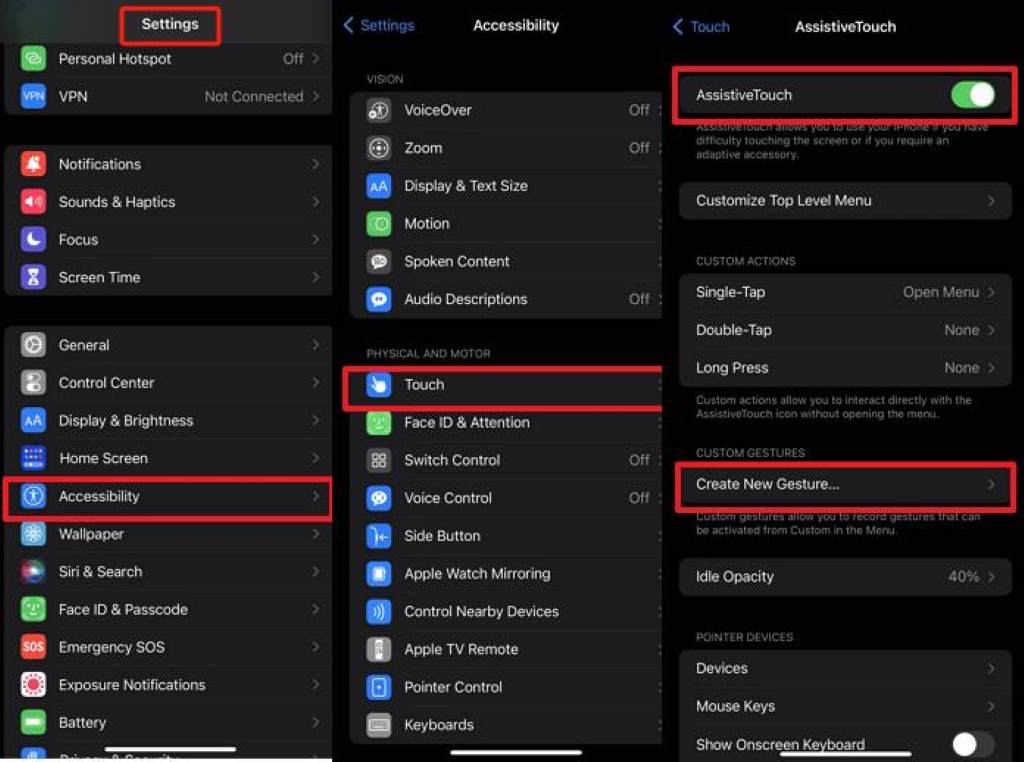
iPhone users can also use AssistiveTouch to create automatic long-press actions for Snapchat recording. This method helps when the built-in Snapchat lock feature does not work properly. Moreover, it provides additional control during video creation and live movement shots. Many content creators use this trick for flexible recording.
Here is how to set it up:
- Open Settings on your iPhone
- Go to Accessibility
- Tap Touch
- Select AssistiveTouch
- Turn AssistiveTouch on
- Choose Create New Gesture
- Press and hold the screen area for several seconds
- Save the gesture with a custom name
After setup, open Snapchat and activate the saved gesture while recording. The phone will simulate a long press automatically without requiring your finger. Consequently, you can record videos more comfortably during daily use. This method works especially well for tripod-based content creation.
Benefits of Using AssistiveTouch
AssistiveTouch offers several advantages for Snapchat users who record videos regularly. First, it reduces finger strain during longer recording sessions and outdoor shoots. Second, it supports stable filming when users mount their devices on stands or tripods. Therefore, creators gain more flexibility while producing content.
This feature also helps users record tutorials, beauty content, or workout videos more easily. Additionally, it improves accessibility for people who have difficulty holding buttons continuously. Since iPhones include the feature by default, users do not need third-party apps for setup. As a result, the process remains safe and reliable.
How To Record Without Holding the Button on Snapchat on Android
Use Accessibility Features on Android
Android users can use accessibility settings to create easier recording shortcuts for Snapchat. Different phone brands provide slightly different options depending on the operating system version. However, most modern Android devices include gesture or assistant features for touch automation. Therefore, users can still record videos comfortably without holding the button.
Follow these general steps:
- Open Settings
- Go to Accessibility
- Search for Interaction Controls or Assistant Menu
- Enable touch assistant features
- Create a custom long-press gesture if available
- Open Snapchat and start recording
Some Android brands also support screen gesture automation through gaming or assistant tools. Samsung, Xiaomi, and OnePlus devices often include advanced touch control features for users. Moreover, Android customization allows greater flexibility for recording setups and accessories. Many creators prefer Android because of these adjustable controls.
Use a Bluetooth Remote or Selfie Stick
Bluetooth remotes provide another excellent way to record Snapchat videos hands-free on Android phones. These small accessories connect wirelessly and trigger camera controls remotely during recording. Furthermore, selfie sticks with Bluetooth buttons work similarly for outdoor and travel content. Users can move naturally while recording videos from a distance.
This method works especially well for fitness videos, dance clips, and group recordings. Additionally, it helps stabilize the camera when shooting in windy or humid weather conditions. People in hot climates often use remote controls to avoid touching overheated screens repeatedly outdoors. Therefore, this setup improves comfort during extended recording sessions.
Related:
How to enable snapchat dark mode
How to Stay Updated with the Latest Tech Trends
Common Problems During Snapchat Hands-Free Recording
Recording Stops Suddenly
Sometimes Snapchat stops recording unexpectedly even after activating the lock feature correctly. This issue usually happens because of outdated app versions or temporary software glitches. Additionally, low phone storage can interrupt video saving during longer recording sessions. Users should regularly update the app and clear unused files.
Restarting the phone often fixes temporary Snapchat recording problems quickly and safely. You should also close unnecessary background apps before recording longer videos. Moreover, checking internet connectivity can help prevent syncing and saving interruptions. Stable performance improves the overall recording experience significantly.
Lock Icon Does Not Appear
Some users cannot find the lock icon while attempting hands-free recording on Snapchat. This issue usually appears when users tap too quickly or use outdated versions of the app. Additionally, certain device compatibility issues may temporarily affect feature visibility on screen. Therefore, updating Snapchat should become the first troubleshooting step.
Users should also verify that camera permissions remain enabled inside device settings. Restarting the app can sometimes restore missing interface elements immediately after launch. Moreover, reinstalling Snapchat may solve persistent software conflicts causing recording issues. These quick solutions usually restore normal functionality within minutes.
Best Tips for Better Snapchat Video Recording
Improve Lighting Before Recording
Good lighting makes Snapchat videos look clearer, sharper, and more professional during playback. Natural daylight often produces the best results for selfies and outdoor recordings. However, direct sunlight may create harsh shadows during hot afternoon weather conditions. Therefore, users should record during softer morning or evening light whenever possible.
Indoor users should place lights in front of their faces instead of behind them. This setup improves visibility and reduces dark or blurry video results significantly. Additionally, ring lights help create smoother and brighter clips for stories and reels. Better lighting always improves overall video quality on Snapchat.
Keep the Camera Stable
Stable footage creates a more polished appearance and keeps viewers engaged longer. Users should place phones on tripods, tables, or stable surfaces whenever possible. Moreover, hands-free recording becomes easier when the device stays securely positioned during filming. Stability also improves focus and video sharpness throughout the recording.
Outdoor creators should avoid recording during strong winds or sudden rain conditions. Humid climates can sometimes fog camera lenses and reduce recording clarity outdoors. Therefore, users should clean lenses regularly before starting Snapchat sessions. Small adjustments can greatly improve final video results.
Plan Content Before Recording
Planning your video before recording saves time and improves storytelling on Snapchat significantly. Users should decide on camera angles, transitions, and talking points before pressing record. Additionally, organizing ideas reduces awkward pauses and unnecessary retakes during filming sessions. Prepared creators usually produce more engaging and professional content.
Short scripts or quick outlines also help maintain confidence while speaking on camera. Furthermore, users can focus more on creativity instead of worrying about recording controls. This preparation becomes especially useful for tutorials, reviews, or travel videos. Consistent planning improves content quality over time.
Best Uses for Hands-Free Snapchat Recording
Hands-free recording supports many different content styles across Snapchat and other social platforms. Fitness trainers often use it for workout demonstrations and exercise tutorials during training sessions. Beauty creators also rely on hands-free filming while applying makeup or skincare products. Consequently, viewers receive smoother and more informative visual content.
Travel vloggers benefit greatly from hands-free recording while exploring crowded tourist locations outdoors. Food creators can also show cooking processes without constantly touching their phones during preparation. Additionally, musicians and dancers use the feature for performance videos and creative challenges online. This flexibility makes Snapchat more useful for content creation.
Businesses also use Snapchat hands-free recording for product promotions and behind-the-scenes clips regularly. Retail stores often showcase new arrivals using stable and professionally filmed videos. Moreover, local creators can highlight seasonal weather, festivals, or outdoor events more effectively with hands-free tools. These videos usually feel more authentic and engaging to viewers.
Mistakes To Avoid While Recording on Snapchat
Many users accidentally cover microphones while recording videos on Snapchat during movement. This mistake reduces sound quality and makes videos harder for viewers to understand clearly. Additionally, background noise can overpower voices in crowded outdoor environments or busy streets. Therefore, users should test audio quality before recording important content.
Overusing filters can also reduce video quality and make clips appear unnatural to audiences. Users should choose effects carefully instead of applying multiple filters at once during recordings. Moreover, shaky camera movement can distract viewers and reduce watch time significantly. Stable positioning always creates cleaner and more enjoyable Snapchat videos.
Some users forget to clean their camera lenses before recording Snapchat content outdoors. Dust, humidity, or fingerprints often create blurry and unclear footage during filming sessions. Additionally, low battery levels may stop recordings unexpectedly before completion. Checking phone condition beforehand helps prevent unnecessary interruptions.
Is Hands-Free Snapchat Recording Safe?
Hands-free recording on Snapchat remains completely safe when using official app features and device settings. The built-in lock recording tool comes directly from Snapchat and requires no risky modifications. Additionally, accessibility tools from Apple and Android follow official device security standards. Therefore, users can safely use these methods without concern.
However, users should avoid downloading unknown third-party recording apps from untrusted sources online. Some unofficial apps may contain malware, excessive advertisements, or privacy risks for personal accounts. Moreover, fake Snapchat extensions sometimes request unnecessary permissions during installation. Sticking with trusted methods remains the safest approach for recording videos.
Conclusion
Learning how to record without holding the button on Snapchat can greatly improve your overall content creation experience. The built-in lock feature offers the fastest and easiest solution for most users today. Additionally, iPhone and Android accessibility tools provide extra flexibility for longer or more creative recordings. With proper lighting, stable positioning, and planning, your Snapchat videos can look smoother and more professional.
Start testing these hands-free recording methods today and improve the quality of your Snapchat content immediately. Consistent practice will help you create more engaging stories, reels, and video snaps over time.
FAQ
How do I record hands-free on Snapchat?
Press and hold the record button, then slide to the lock icon for hands-free recording.
Does Snapchat hands-free recording work on iPhone?
Yes, Snapchat supports hands-free recording on iPhone through its built-in lock feature and AssistiveTouch.
Can Android users record Snapchat videos without holding the button?
Yes, Android users can use Snapchat’s lock feature or accessibility controls for hands-free recording.
Why does Snapchat stop recording automatically?
Low storage, app glitches, or outdated software can cause Snapchat recordings to stop unexpectedly.
Is there a time limit for hands-free Snapchat recording?
Yes, Snapchat video recording still follows the app’s maximum recording duration limits.
Suggested URL Slug
how-to-record-without-holding-the-button-on-snapchat